
How Do You Attribute Trade Show Revenue?
To attribute trade show revenue accurately, capture campaign parameters at every physical and digital touchpoint before that lead ever reaches your CRM:
- Pre-show promotions. Tag every email, social, and direct mail invite with its normal source and medium (
utm_source=linkedin&utm_medium=paid-social, orutm_source=mailchimp&utm_medium=emailfor invite sends), and lockutm_campaignto the event so pre-show clicks roll up into the same report as everything that follows. - At-show booth assets. Encode a short, redirect-backed URL carrying
utm_source=event&utm_medium=qr-codeinto every backdrop, banner, and table-tent code. - Badge scans and CSV imports. Add Original Source/Medium/Campaign columns to the badge-scanner export before it gets imported, so those contacts don't default to "Offline Import" or a blank source the way a raw spreadsheet upload otherwise would.
- CRM field carryover. Map the custom UTM properties from the Lead/Contact object to the Deal/Opportunity object, set to keep their original value, so a revenue report can filter closed-won deals by the event that actually produced them.
The trade show data chain, in four steps
Physical interaction (QR scan or badge scan) → captured in three CRM contact fields (Source, Medium, Campaign) → carried onto the Opportunity when it's created → filtered in the closed-won revenue report.
Every section below is really just a detailed answer to one link in that chain: which fields to create, what to tag, how to keep the badge-scan import from wiping the chain out, and how to make it survive from Contact to Deal.
Quick start: Start free with Trakt to build your booth UTM links and QR codes and record each form submission with its source. Or follow the manual steps below.
How to Set Up Trade Show UTMs
Tag your destination URL, pick the touchpoint, and generate a standardised tracking link or print-ready QR code, using the taxonomy this guide walks through below.
Do it in Trakt
The full Link Builder in the product walks through the same four fields, with the picker showing Tradeshow-specific options at each step rather than a blank text input:
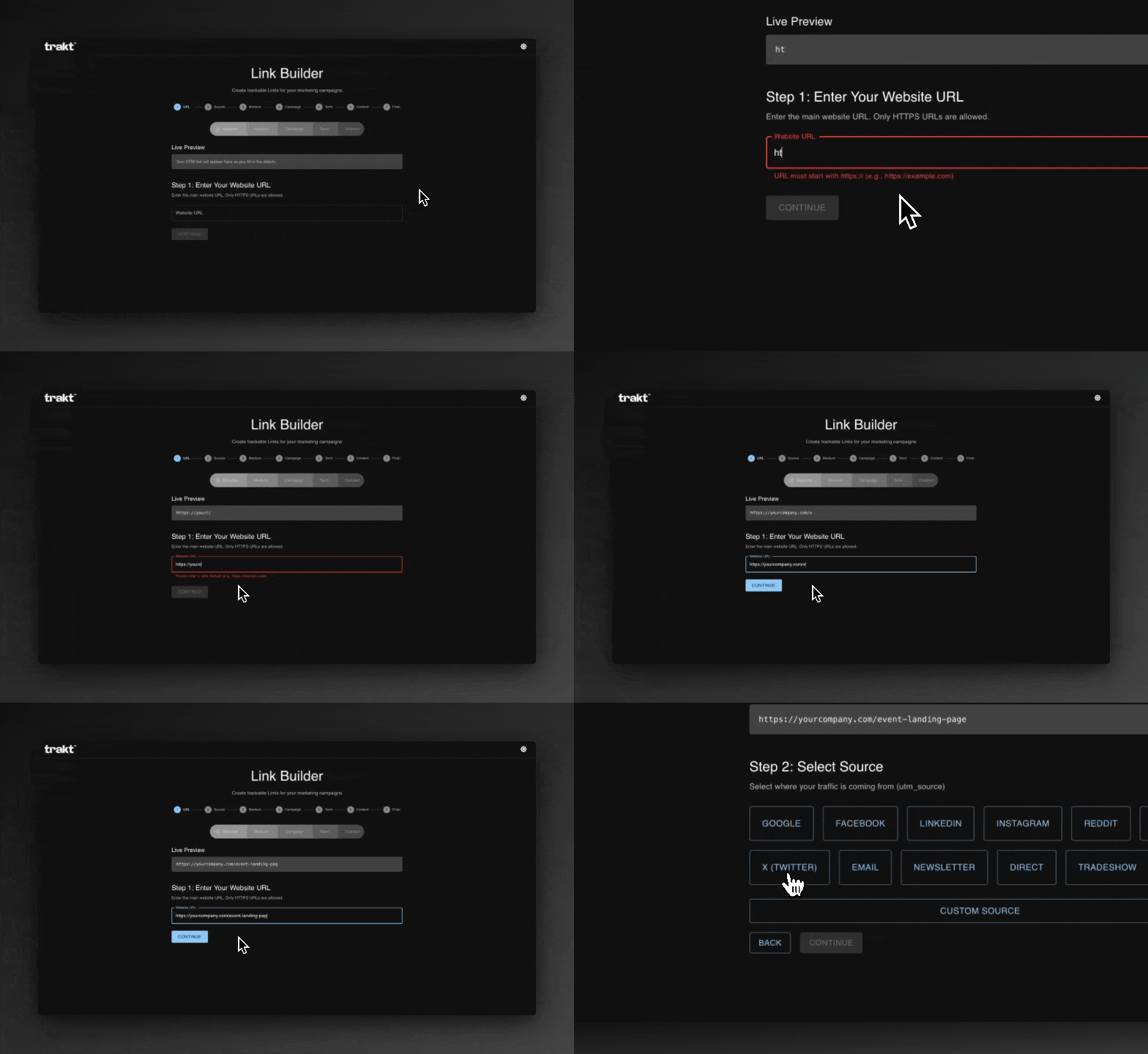
Step 1: Enter your website URL.
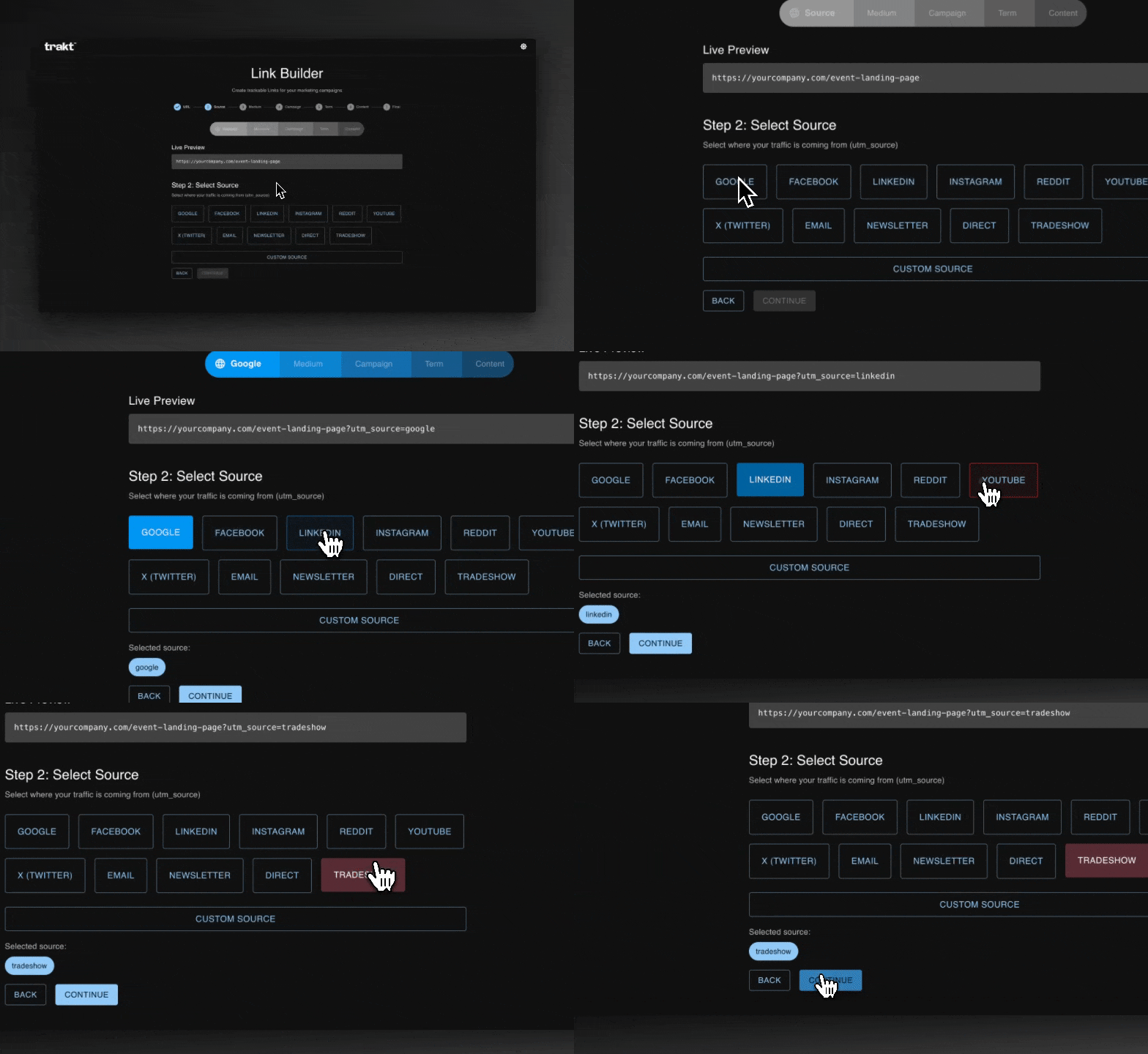
Step 2: Select your source, Tradeshow among them.
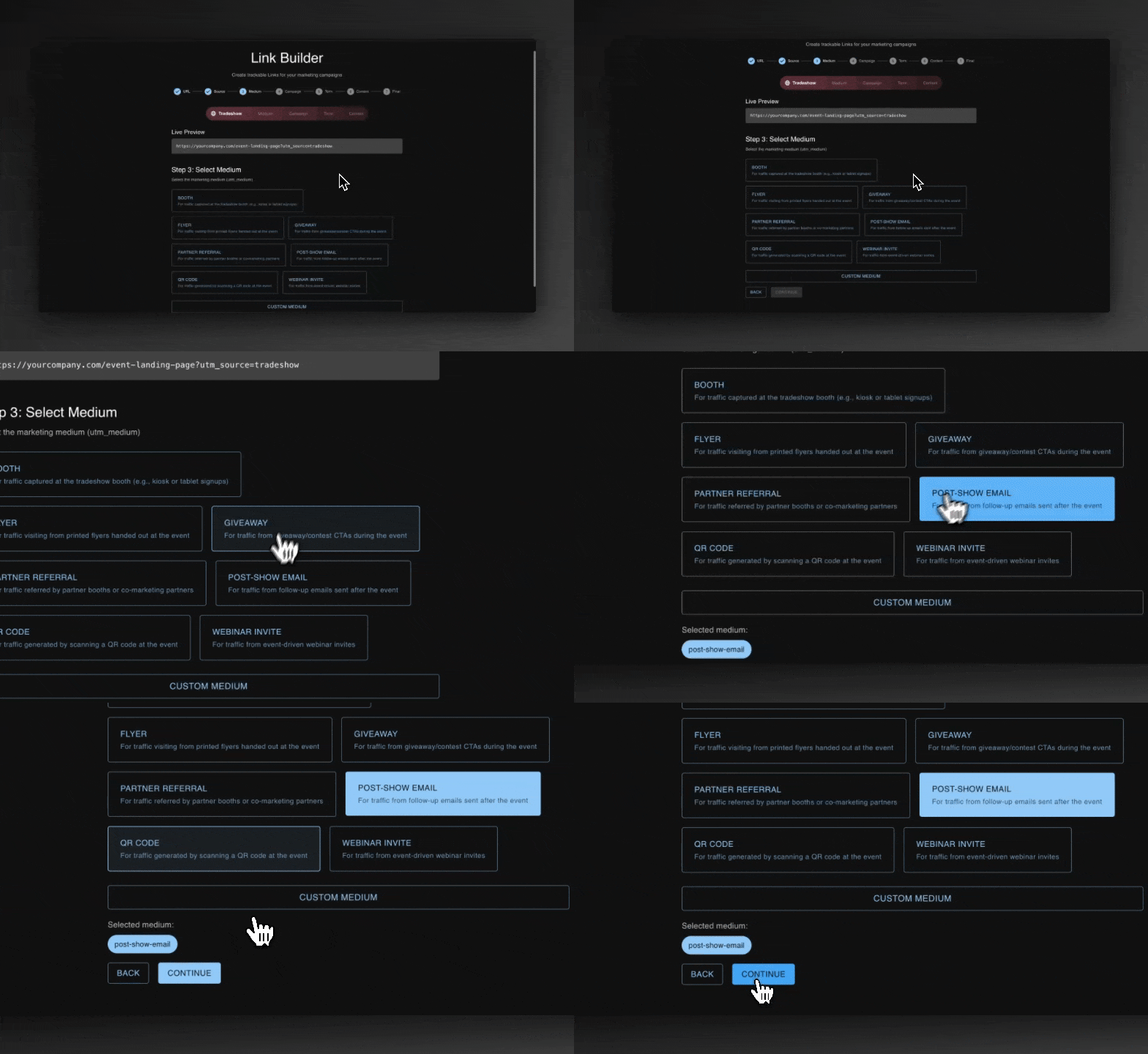
Step 3: Select your medium, the specific touchpoint within Tradeshow.
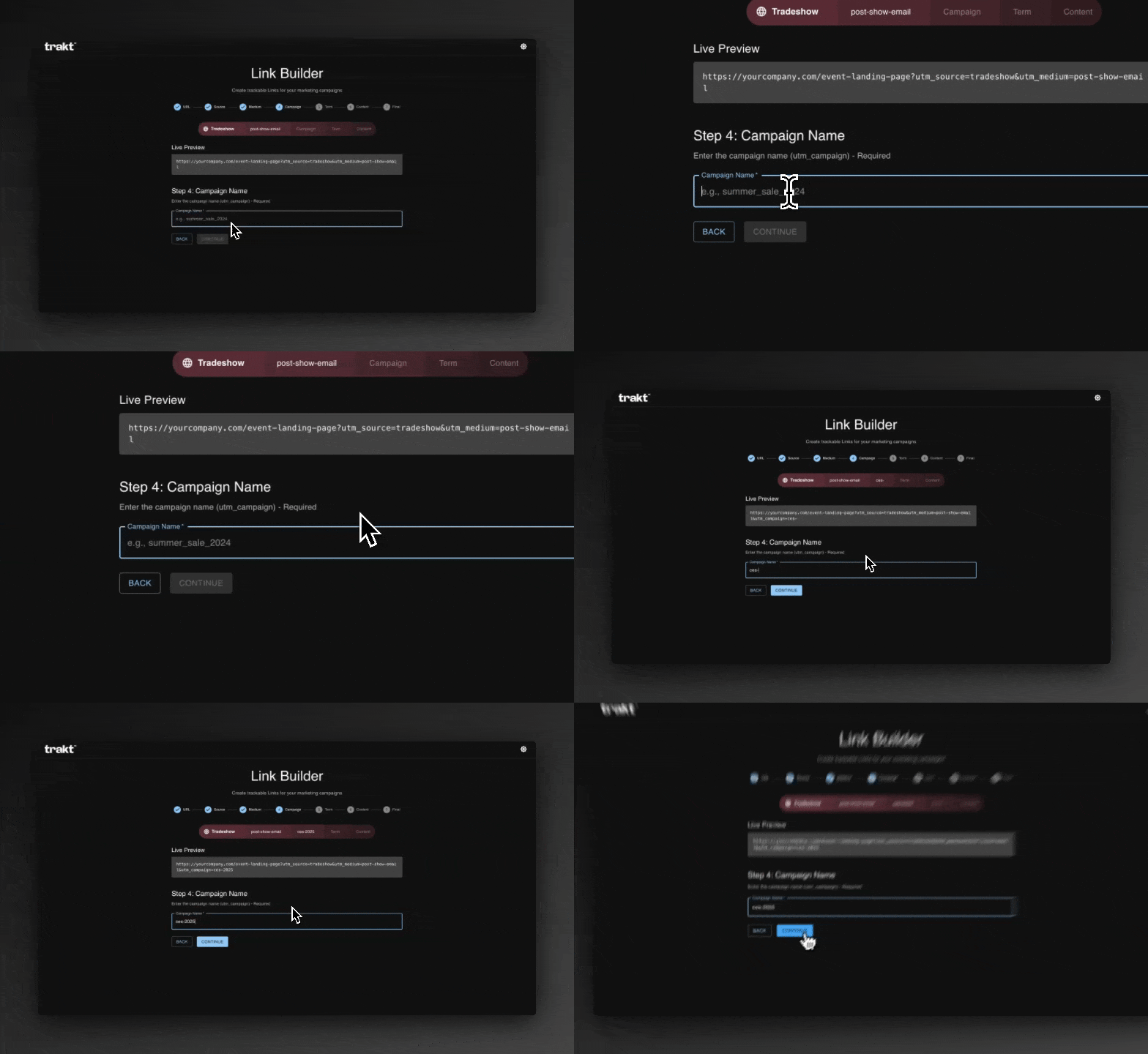
Step 4: Name the campaign, the event itself.
Master Trade Show UTM Taxonomy Matrix
| Phase | Touchpoint | utm_source | utm_medium | utm_campaign | utm_term | utm_content |
|---|---|---|---|---|---|---|
| Pre-show | Email invite | mailchimp | email | dreamforce-2026 | pre-show-vip | header-cta |
| Pre-show | Paid social ad | linkedin | paid-social | dreamforce-2026 | attendee-target | speaker-video |
| At-show | Booth backdrop QR | event | qr-code | dreamforce-2026 | backdrop-qr | demo-incentive |
| At-show | Handout flyer | event | print | dreamforce-2026 | flyer-table | discount-code |
| At-show | Booth conversation | event | event | dreamforce-2026 | booth-312 | — |
| Post-show | Nurture email | event | email | dreamforce-2026 | day-3-followup | case-study-link |
utm_source=event is a constant across every on-site row, the same way utm_campaign=dreamforce-2026 is constant down the whole table. That's deliberate: it's what turns "pipeline from Dreamforce" into one filterable report instead of a dozen inconsistently-tagged fragments. utm_medium is the column that actually tells you which touchpoint did the work.
Badge scans don't get a row here; a badge scanner has no way to write a UTM parameter to begin with. That's its own problem, covered in Phase 3.
Phase 1: Pre-Show Outreach & Digital Promotions
The goal: driving booth traffic and pre-booked demos
Pre-show marketing builds your attendee pipeline before the doors open. Every link sent to a prospect needs standardized parameters to separate this pre-event promotion from ordinary organic site traffic later.
Execution rules
- Standardize the campaign name and lock it.
utm_campaign=dreamforce-2026across every pre-show channel, neverDreamforce26on one link anddreamforce_2026on the next. Analytics tools treat those as different campaigns. - Pre-booked demo links. When a rep sends a calendar link (Cal.com, HubSpot Meetings, Chili Piper) to a target attendee, tag it
utm_source=sales-outreach&utm_medium=emailso a booked demo can be traced back to the rep's own pre-show push, separate from marketing's invite send. - External channels only. Never put a UTM on an internal link. A link from one page on your own site to another should never carry one, it overwrites the visitor's real original source and creates a false session in its place.
CRM configuration
Route pre-show form submissions into a temporary "Event Registrant" list. Hidden form fields need to capture utm_source, utm_medium, and utm_campaign so these leads land tagged "Pre-Show Engaged" rather than mixed in with general site traffic.
Phase 2: At-Show Booth Assets, QR Codes & Floor Signage
The goal: converting foot traffic into an identifiable digital session
On the expo floor, attendees interact with physical assets: a backdrop, a banner, a table-tent card. Turn that physical attention into a tracked digital session with a camera-scannable QR code or a short vanity URL.
Sizing and print rules
Size a booth QR code to the distance people will actually be standing when they scan it, using the same 10:1 distance-to-size ratio the QR code generator uses:
| Scanning distance | Minimum QR size | Typical booth asset |
|---|---|---|
| 1 ft / 30 cm | 1.2 in / 3 cm | Business card, table sign |
| 6 ft / 2 m | 8 in / 20 cm | Booth panel, window decal |
| 16 ft / 5 m | 20 in / 50 cm | Backdrop banner, exhibition stand |
Never encode a raw, hundred-character tracked URL directly into the code. A long payload produces a dense, tightly-packed QR pattern that fails to scan under convention-center lighting from any real distance. Put the destination behind a short redirect link instead, one that carries the full UTM string on the other side of the redirect, and generate the code from that instead.
Phase 3: Badge Scans, On-Site Rep Interactions & CSV Imports
The goal: preventing the "Offline Import" attribution wipeout
Badge scanners provided by the event organizer export a raw attendee spreadsheet. The most common failure in trade show tracking happens right here: that CSV gets uploaded straight into the CRM with no UTM metadata attached at all.
Fixing the badge import data loss
When a raw spreadsheet lands in HubSpot or Salesforce with no source columns, the CRM defaults those contacts' Lead Source to "Import," "Offline," or "Direct," wiping out the trade show's credit before a report ever gets pulled.
Standardize the import instead:
- Add UTM columns to the export before uploading. Insert
Original Source(event),Original Medium(event),Original Campaign(dreamforce-2026), andOriginal Content(booth-rep-[name], if you want to trace which rep's conversations converted). - Map those columns to your CRM's custom contact fields on import, the same Original Source/Medium/Campaign properties every other touchpoint in this taxonomy writes to.
- Set the field update rule to "update only if blank." If someone scanned your booth QR code two days before a rep also scanned their badge, the earlier touchpoint is the one worth keeping. An overwrite rule set the other way erases it.
Phase 4: Post-Show Retargeting & Email Nurture
The goal: tracking pipeline velocity through to a closed deal
Trade show deals rarely close on the floor. Most of the real work, the demo, the proposal, the internal sign-off, happens in the weeks after, during follow-up and retargeting.
- Nurture sequence.
utm_source=event&utm_medium=emailfor the post-show email series, withutm_campaignkept identical to the main event tag so it rolls into the same report rather than starting a new one. - Retargeting. For paid retargeting against an uploaded badge-scan audience, tag it
utm_medium=paid-social&utm_campaign=dreamforce-2026-retargeting, a distinct campaign suffix on purpose, since this is spend you want to evaluate on its own alongside the original event line.
How Trade Show UTMs Flow Into Your CRM (HubSpot, Salesforce, Pipedrive)
To calculate true event ROI, attribution data has to survive the trip from a cold lead to an active pipeline opportunity to a closed deal, not just get captured at the door and dropped somewhere along the way. Once the tag is on the lead, the free conference ROI calculator for B2B events runs the division from fully loaded cost and those tracked leads. The example there is hypothetical.
| Stage | Object | What has to carry over |
|---|---|---|
| Booth scan | Contact / Lead | utm_source, utm_medium, utm_campaign written to Original Source/Medium/Campaign |
| Qualified | Opportunity / Deal (created) | Same three fields copied from the Contact, not re-derived |
| Closed | Opportunity / Deal (closed) | Fields untouched since creation, so the closed-won report can filter by them |
HubSpot: create the Original Source/Medium/Campaign properties (plus Term and Content if you're using them) on the Contact object, set to "keep original value," then map the same properties onto the Deal object so a Contact's first-touch data copies over the moment a Deal is created from it.
Salesforce: create matching custom text fields on both the Lead and Opportunity objects (Salesforce auto-suffixes these __c, e.g. original_source__c). Salesforce doesn't carry Lead fields to Opportunity automatically on conversion, so this needs a Flow or Process Builder rule that maps all three fields at conversion time, set to update the Opportunity only if the field is currently blank.
Pipedrive: create the fields on both the Person and the Deal, since Pipedrive has no native field carryover between them at all. An automation, Pipedrive's own workflow builder or Zapier, has to copy the three values from Person to Deal at creation, or they never make it onto the record closed-won reporting actually reads from.
If you want the event's links, QR codes, and lead sources in one place instead of a spreadsheet, pre-register for Trakt.
Why Manual Setup Fails in Practice (And What Trakt Covers)
Even with strict naming conventions, manual trade show tracking breaks down for three structural reasons:
- The cross-device gap. An attendee scans your booth QR code on their phone (
utm_source=event). Three days later, back at the office, they open a desktop browser and type your domain in directly. A standard setup marks that second, converting session as "Direct" or "Organic," with no link back to the booth that actually started it. - CSV import overwrites. A rep uploads the badge-scanner spreadsheet late, after the lead already has an earlier, real UTM on file, and the import's blank "Offline" values overwrite it instead of the reverse.
- Inconsistent naming. One person types
Saastr2026, another typessaastr-26, a third writessaastr_2026, and pipeline for the same event is now split across three unmergeable rows until someone reconciles it by hand.
How Trakt closes the gap
You can write perfect UTMs, size every QR code correctly, and still lose this fight, because none of the three failure modes above are a tagging problem. They're what happens between the tag and the CRM record, and a UTM string alone doesn't survive that gap on its own.
Trakt covers the parts that happen on your website. It does not join a phone to a laptop, and it does not import badge scans:
- Source remembered in the same browser. Trakt remembers the UTMs in a first-party cookie for 90 days, so a form submission days later in the same browser still carries the booth source. A later visit on a different device starts fresh.
- Standardized link generation. Dropdown selection instead of free typing, the same taxonomy every time, so
saastr-2026can't quietly become three different values across a team. - Source on every submission. Trakt records each form submission with its source attached, even when the form has no hidden fields, and credits won deal value to that source in Trakt's leads pipeline. It does not sync into HubSpot, Salesforce or Pipedrive; those still need the field mapping above.
Manual Setup vs. Trakt, By Requirement
| Requirement | Manual (DIY) | Trakt |
|---|---|---|
| Cross-device tracking | Breaks: a mobile scan and a later desktop conversion have no way to connect without a persistence layer | Not solved: Trakt's cookie belongs to one browser, so a phone scan and a laptop conversion stay separate |
| Badge-scan imports | Manual CSV column mapping per event, done by hand under show-week pressure | Same either way: Trakt does not import badge scans, so add the source columns before upload |
| Naming consistency | Whatever each person types: Saastr26, saastr-26, saastr_2026 all end up as different campaigns | Enforced through dropdown selection, not free typing |
| Deal carryover after setup | Depends on a Flow, Zap, or property mapping nobody's touched since it was built | Trakt credits won deal value to the source in its own leads pipeline; your CRM still needs its own mapping |
| One-time CRM field setup | Same either way, both need the Original Source/Medium/Campaign fields created once | Same either way, both need the Original Source/Medium/Campaign fields created once |
Frequently Asked Questions
How do you track revenue ROI from a trade show in a CRM?
Capture event-specific UTM parameters (utm_campaign=your-event-name) on every landing page form and on the badge-scan import, map those parameters to custom CRM contact fields set to keep their original value, and configure your CRM to carry those fields from the Contact to the Deal on conversion. Filter closed-won revenue by the event campaign name and compare it against total event spend for the ROI number.
What utm_medium should I use for trade show touchpoints?
Use event for the general booth presence and in-person conversations, qr-code for anything scanned, print for flyers and handouts, and email for both pre-show invites and post-show nurture (paired with a normal, non-event source like mailchimp for those, since they're not on-site touchpoints). Keeping utm_medium to this short, fixed list is what keeps an event report readable instead of fragmenting into dozens of one-off values.
Should I add UTM parameters to a badge-scanner CSV import?
Yes, indirectly: a badge scanner can't write a UTM parameter itself, so add Original Source, Original Medium, and Original Campaign columns to the exported spreadsheet before uploading it, populated with your event's taxonomy, and set the CRM's field update rule to only write when the field is currently blank. That prevents the import from overwriting an earlier, real touchpoint the same contact already had on file.
What happens when someone scans a booth QR code on mobile but converts later on desktop?
In a standard setup, that later desktop session registers as "Direct" or "Organic Search," and the trade show loses credit for a lead it actually produced. A first-party cookie, including Trakt's, only remembers the source in the browser that scanned, so it does not close that gap. Give the booth visitor a reason to convert on the phone, such as a demo booking on the landing page, or ask "Where did you hear about us?" on the form.
How big should a QR code be on a trade show booth banner?
Follow the same 10:1 distance-to-size ratio as the rest of the site's QR guidance: roughly 1.2 in for a code scanned from a foot away (a business card or table sign), 8 in from six feet (a booth panel), and 20 in from sixteen feet (a backdrop banner or exhibition stand wall). Undersize it for the distance and no camera in the room resolves it.